These days we can take as many digital images as you like and put them together in editing programs such as Photoshop.
I had a look at a few online tutorials but decided to experiment myself.
This is one tutorial I found very useful and made a few alterations to get the outcome I wanted...

You’ve probably seen this interesting effect of two or more overlapping photos on the covers of music albums, in modern magazines and in advertisements. In this tutorial we’ll create a trendy double exposure effect in Adobe Photoshop with the help of Blending Modes and Clipping Masks in a few steps.
In photography and cinematography, multiple exposure is a combination of two or more exposures to create a single image. Initially, this is a technique in which the camera shutter is opened more than once to expose the film multiple times, usually to different images. However, with our modern software, we can easily recreate a similar effect in Adobe Photoshop.
If you’re looking for premium quality Photoshop Photo Effects and Photoshop Actions, then choose from our assortment of creative options, such as our Double Exposure Photoshop Action, which is available for purchase on GraphicRiver.
Actions and pre-built effects can save you time, but in this tutorial you'll learn how to create a double exposure effect from scratch—giving you maximum flexibility and creative control. Let’s get to it!
1. Prepare the Main Photo
Step 1
For the base of our image, we’ll be using the following photo of a young man fromStockvault.net. You can use any photo to your liking, for example, from your personal archive. However, make sure that the background of your photo is more or less neutral, without noisy elements such as grass or foliage, to make it easier to work with.

Let’s take the Crop Tool (C) and make the photo less wide by deleting its side parts.

Step 2
Now we need to make it much brighter and add contrast. Go to Image > Adjustments > Levels or press Control-L to call the pop-up Levels menu. Move the lightest slider to the left, making our photo brighter, and add contrast by moving the left black slider to the right. Otherwise, you can just set the particular values in the spaces below: 7 for the shades of black, 1.15 for greys and 197 for whites. Click the OK button to apply the adjustments.

Step 3
Let’s fix the guy’s ear with the Spot Healing Brush Tool (I). Just click and move your mouse, drawing above the area you wish to fix and—voila!—the marked area is clean and flawless. This is a very handy tool for photo retouching, when you need to get rid of some minor flaws and bumps on the skin.

Step 4
Now we need to get rid of the background. This is a piece of cake, as we’re using a photo with a clean background. Take the Magic Wand Tool (W) and click anywhere on the background to select it. Then go to Select > Inverse in order to make the man selected.

Step 5
While you are still armed with the Magic Wand Tool (W), find the Refine Edgebutton in the control panel above to reveal the Refine Edge options window. Here you can change the View of your photo in the View Modes, placing the selected element on white, black, transparent and other backgrounds, making it more visible and convenient to edit.
Slightly increase the Radius value in the Edge Detection, setting it to 1.5, making the edges less rigid and thus revealing minor details, such as separate hairs. Set theOutput To in the Output section of the options window to New Layer with Layer Mask. This will automatically create a copy of your initial image with the background hidden by the Clipping Mask.
You can play with other Refine Edge options as well, making the edge smoother or more blurred. This would be handy if you’re cutting out the element that is surrounded by other elements, or the image has some more complex background and the edges of the main object are messy. In our case, these minor adjustments are enough to continue creating the desired effect.

Step 6
Create a New Layer below the cut-out portrait and fill it with neutral greyish color (#dcdbd9) using the Paint Bucket Tool (G).

2. Create the Double Exposure Effect by Combining Two Images
Step 1
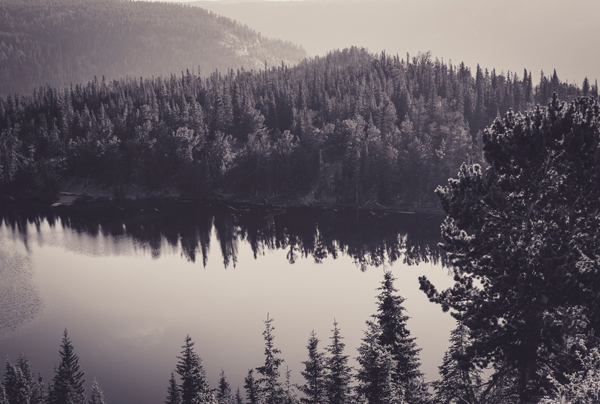
Let’s select the second photo for our composition. This can be some nice flower shot or cityscape, or anything abstract and intricate. For this tutorial, we’ll use this monochromatic nature scene of a forest by Samuel Rohl, which you can find atUnsplash.com.
Step 2
Place the image of the forest above the man’s portrait. Keeping the forest layer selected, press the Control key and click on the Layer Clipping Mask of the layer below (the one with the portrait). You will see the marching ants selection of the man’s silhouette on the forest layer.

Step 3
Press the Add vector mask button in the bottom of the Layers panel to hide the unneeded parts of the forest image. If you click on the chain icon between the image thumbnail and the mask thumbnail in the Layers panel, this will unlink the layer and its mask, so that you can move and rotate the image inside the mask without moving the whole layer.
In our case, let’s put the forest image upside down, so that the dark reflection of the trees is placed in the head area of the silhouette, as shown in the screenshot below.

Step 4
Select the layer which contains the cutout portrait with Clipping mask. Make a copy(Control-J) and drag and drop it above the forest layer.

Let’s make the portrait monochromatic to fit the forest image color palette. Keeping the portrait layer selected, move to Image > Adjustments > Desaturate or just press Shift-Control-U, converting our image to grayscale.

Step 5
Open the Levels (Control-L) options window and make the image much darker by moving the black slider to the right side or manually setting its value to 117.
Apply the effect and go to Image > Adjustments > Hue/Saturation. Tick theColorize checkbox in the bottom right corner of the options window to change the whole range of colors of our image. Set the Hue value to 212, moving the slider to the right, thus adding tints of blue. Set the Saturation level to 10, decreasing the vividness of the photo, and click OK to apply the created effect.

Step 6
Right-click on the portrait layer mask and we can Apply Layer Mask in the dropdown menu. Change the Blending Mode of the portrait layer to Screen in theLayers panel. We can already see that the desired double exposure effect appears! Only a few minor tweaks left, so let’s move on!

Step 7
Let’s make the image more surrealistic by editing the head of the portrait. Take theBrush Tool (B) and select the Airbrush Soft Round 17 from the standard Round Brushes with Size set (you can find it in the drop down brushes menu if you click the right mouse button or in the Brushes (F5) panel).
Select the Layer Mask of the forest layer, set the Fill color to white and paint softly over the upper part of the head area (marked with red in the screenshot), thus erasing the unwanted parts of the head and adding some air in the top part of the image. This makes the image look as if the trees are growing directly from the man’s head.

Step 8
Some parts of the image look too noisy at this step—for example, the eyes area, where the trees from the forest image create a distracting effect. Let’s get rid of this and make these parts more clear and contrast.
Create a New Layer beneath the desaturated portrait layer, take the Brush Tool (B)again and switch the Fill color to dark blue (
#2f2c35), which you can pick directly from the hair part of the portrait with the Eyedropper Tool (I).
Start painting over the eyes area, making it more distinct. For more convenience, you can Control-click on the layer mask of the portrait layer to create a marching ants selection, which allows you to draw inside the selected area, without crossing its boundaries.

Let’s add a finishing touch to our image. Select the desaturated portrait layer andAdd Layer Mask by clicking the mask icon in the bottom part of the Layers panel. Take the Brush Tool (B) and switch the Fill color to black. Since our Layer mask is white by default, the black color will help us to erase the unwanted parts of the image. Paint over the neck area of the man, creating an illusion of his face popping out from the trees.

Great Job! Our Trendy Portrait Is Finished!
Congratulations! These simple steps helped us to create a stylish double exposure portrait by combining two images and creating an interesting surrealistic effect. I hope you’ve found some handy tips and tricks, which will help you to make more interesting combinations and photo manipulations. Good luck!

Below are a few images I found online which I liked and inspired me to try the final image I created...

(Image found at http://www.popphoto.com/sites/popphoto.com/files/styles/medium_1x_/public/import/2014/files/_images/201404/pph0414_ycd_01.jpg?itok=B0C1PbVY on 19.01.2016)

(Image found at http://www.christofferrelander.com/wp-content/uploads/2013/12/appletree800px.jpg on 19.01.2016)

(Image found at https://c1.staticflickr.com/3/2863/11754546425_4af687f33a_b.jpg on 19.01.2016)

(Image found at http://www.vineet-suthan.com/photoblog/wp-content/uploads/2014/09/vanidoublexposure.jpg on 19.01.2016)
Below are the before and after images...


I added the above images behind a picture of the Nottingham Council house then changed the blending mode to Colour Burn and set the opacity to 80%. I then added a Black and White adjustment layer. Below is the final image...


I placed the second image on top the metal image and again selected Colour Burn blending mode and set the opacity to 80%.

I love this image because of the colours and the way it looks almost like a painting. It is unique and different.

This one was more difficult and took more time but was just as fun to create as the other two. I used my daughters head shot and the image of the tree above. I opened a new blank page in Photoshop and added my daughters head shot in a new level. I then erased her hair using the eraser so it just looked white. I then added a new layer with the tree under the layer of my daughters face. I transformed the tree to turn it 90 degrees clockwise and then made it slightly bigger to match the size of the head. I then selected the head layer and continued to erase with a low opacity and flow to make the face blend with the hair better. Once I was happy with the outcome I added a Black and White adjustment layer and a levels layer to brighten the image slightly. This is my end result...

I love this image as it is very surreal but effective. I am very happy with how this image turned out and I would like to create more like this in my spare time but using different body parts and different tree shots.
Overall I have really enjoyed experimenting with multiple exposure and would love to do more. I think you have to have a very creative mind for this type of photography as I think its easier to plan what you want to end up with instead of going out and shooting anything. It has to work and I feel I was very lucky with my 3 images.

No comments:
Post a Comment